
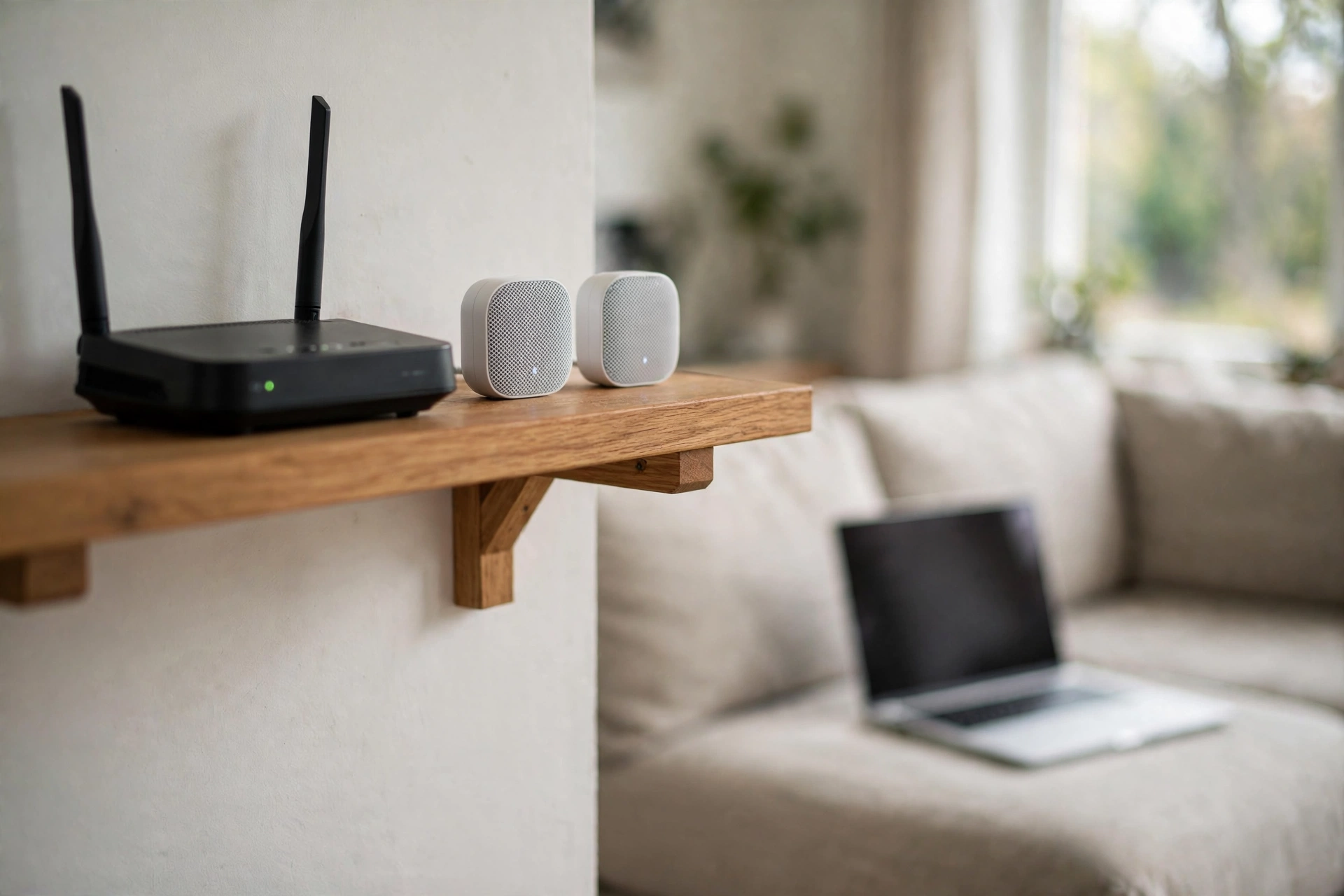
An internet booster sounds like a simple fix for slow Wi-Fi, and sometimes it is. Often, though, the real problem is router placement, thick walls, too many devices sharing one connection, or a slow broadband line. Buying a device before checking those basics can add cost without fixing anything.
This guide takes the broader view. It covers what an internet booster is, how router placement, mesh Wi-Fi, powerline adapters, and wired connections each work, and how to check your speed before you spend anything.
What an Internet Booster Really Is
The phrase internet booster is an umbrella term, not one single product. People use it for a Wi-Fi extender, a mesh Wi-Fi system, a powerline adapter, and sometimes a newer router. Each works in a different way and suits a different problem.
A Wi-Fi extender picks up the signal from your router and sends it on again to a room the router cannot reach well. A mesh system uses two or more units that work together as one network, so devices move between units as you walk through the house. A powerline adapter carries the connection through the electrical wiring in your home, which can help when Wi-Fi struggles through thick walls.
None of these devices increases the speed of the broadband line coming into your home. That speed is set by your plan and your provider. A booster can only carry more of the speed you already pay for into rooms where the signal is weak.
Start With Router Placement Before You Buy Anything
Router placement is the cheapest fix available, and it is often the most effective. Wi-Fi spreads outward from the router, so a router in a corner, on the floor, or behind a television wastes much of its signal on walls and furniture.
Place the router in a central, open, raised position, such as on a shelf in the middle of the home. Keep it out of cabinets and away from large metal objects, mirrors, and water, including fish tanks. Keep it away from electronics that cause interference, such as microwave ovens, cordless phones, and baby monitors.
Walls and floors matter a great deal. A signal through one thin wall may stay strong, while the same signal through several thick walls or a concrete floor may arrive much weaker. If moving the router one room closer removes a wall or two from the path, the difference can be clear. Move the router once, live with the change for a day or two, and test it in each room you use before spending anything on hardware.
Understand the 2.4 GHz and 5 GHz Bands
Most modern routers broadcast on two radio bands, 2.4 GHz and 5 GHz. They trade reach against speed, and knowing the trade-off helps you judge results fairly.
The 2.4 GHz band reaches farther and passes through walls more easily, but it is slower and more crowded. Many household devices share nearby frequencies, including microwave ovens and Bluetooth devices. The 5 GHz band is faster and usually less crowded, but its range is shorter and it struggles more with thick walls. A distant device may hold a steady connection on 2.4 GHz while a 5 GHz connection in the same spot keeps dropping.
Many routers combine both bands under one network name and steer each device to the band that seems best. That works well for most homes. If your router uses separate names, put devices near the router on 5 GHz and distant devices on 2.4 GHz. Many smart home devices only support 2.4 GHz, because they need reach more than speed. Newer routers may also offer a 6 GHz band, which is very fast over a short distance but poor through walls.
Mesh Wi-Fi Systems: Coverage That Works as One Network
A mesh Wi-Fi system uses two or more units that work together as a single network with one name. One unit connects to your broadband line, and the others sit around the home. Your devices connect to the nearest unit and move between units as you walk from room to room.
Mesh suits larger homes, homes over more than one floor, and homes where several rooms have weak coverage. A single extender can help one weak room, but mesh is built to cover a whole home more evenly. The units talk to each other through a link called backhaul. When that link is wireless, units share radio capacity with your devices. When it is wired, with an Ethernet cable between units, more wireless capacity stays free and results are usually steadier. Use a cable between units where you can.
Placement still matters. Put each unit about halfway between the router and the weak area, in an open, raised spot, not inside the dead spot itself. A unit where the signal is already very weak has little to work with. Set the system up with the guidance that comes with it, use a strong, unique password, and keep the software updated. If you use connected devices at home, read the smart home guide for how coverage affects lighting, heating, and security devices.
Powerline Adapters: Using the Wiring Already in Your Walls
Powerline adapters send your internet connection through the electrical wiring in your home. One adapter plugs into an outlet near the router and connects to it with a cable. A second adapter plugs into an outlet in the room that needs a connection, and offers a wired port, Wi-Fi, or both.
Powerline suits homes with thick walls, older construction, or a single distant room that Wi-Fi cannot reach well. A wired port on the far adapter is useful for a television, game console, or desktop computer that stays in one place.
Results vary, because performance depends on the quality and layout of the wiring. Plug each adapter directly into a wall outlet, not into an extension cord or surge protector, and keep adapters on the same electrical circuit where possible. Test the connection over more than one day and judge it by real use: streaming, video calls, and browsing. If a cable can be run to the room, a cable is usually more reliable, so treat powerline as one option to test, not a guaranteed fix.
Wired Connections: When a Cable Beats Wi-Fi
A wired Ethernet connection is the most reliable way to use the broadband speed you already have. A cable removes wireless interference, avoids the ups and downs of a signal passing through walls, and gives a steadier connection with lower delay. For a device that stays in one place, a cable is hard to beat.
Use a cable for devices where stability matters most: a desktop computer used for work, a game console, or the main television used for streaming. A wired television or console also frees up wireless capacity for phones and laptops. The surround sound system guide makes a similar point for movie nights: a stable connection helps streaming stay smooth.
Running a cable is not always easy. A short cable to a nearby desk is simple, but a cable to a distant room may need to run along baseboards or through a hallway, and in a rented home you may need permission before fixing anything in place. A mesh unit fed by a cable gives the best of both: the long run is wired, and the last step to your phone is wireless, from a unit close by.
Check Your Speed the Right Way
A speed test is useful only if it answers the right question: is the problem the line, the Wi-Fi, or the device? Run the tests in order and write down the results.
Start with a wired test. Connect a laptop directly to the router with an Ethernet cable, close other apps, and pause streaming and downloads on other devices. Run the test more than once, at different times of day, including an evening when many people are online. That wired result is the closest measure of what the line itself delivers.
Next, run Wi-Fi tests in the rooms where you use the connection, standing where you normally sit, using the same device each time. If the wired result is close to the speed in your plan but the Wi-Fi result in a far room is much lower, the problem is coverage inside your home. If the wired result itself is well below what you expect, the problem is more likely the line or the router.
Keep a simple record: date, time, wired or Wi-Fi, room, and result. Ofcom, the UK communications regulator, publishes Ofcom advice on staying connected, including testing your line and trying a wired connection. Check the minimum guaranteed speed in your contract, if your provider gives one, and contact your provider with your dated results if the wired speed stays below that level.
When an Internet Booster Helps and When It Does Not
An internet booster helps when the line is sound but the wireless signal cannot reach the rooms where you need it. It helps in a large home, a home over more than one floor, a home with thick walls, or a home where the router must sit at one end of the house.
A booster does not help when the broadband line itself is slow, faulty, or congested at peak times. It does not fix a router that keeps dropping the connection, a line fault outside your home, or a device too old to use modern Wi-Fi well. It does not help during an outage, and it does not make a plan faster than the speed you pay for. A booster placed in a dead spot will only repeat a weak signal.
Ask three questions before you buy. First, is the wired speed near the router sound? Second, is the problem limited to certain rooms? Third, have you tried the free fixes: moving the router, reducing interference, restarting the router, and updating its software? If the answers point to coverage, a booster is worth testing. If they point to the line, talk to your provider first. Government guidance on making broadband faster makes the same point: router position, a wired connection, and interference all come before buying extra hardware.
Simple Settings and Habits That Help
Restart the router from time to time, especially if speeds drop or the connection becomes unstable. A restart clears temporary faults and lets the router choose a less crowded wireless channel. Check for router software updates, and turn on automatic updates if they are offered.
Keep the router secure. Use a strong, unique password for the Wi-Fi network and for the router settings, and change any default password it came with. If your router offers a separate guest network, use it for visitors and simple connected devices. Keep software updated on phones, laptops, and streaming devices too.
Reduce the load at busy times. Devices often work in the background, updating apps and syncing photos. Turn off Wi-Fi on devices you are not using, and avoid starting several demanding tasks at once. Test connected devices where they will live, not beside the router: a camera in a far room with weak Wi-Fi may freeze or send alerts late, as the indoor camera guide explains.
Choosing the Right Fix for Your Home
Start with the free fixes, then match the next step to the shape of your home. In a small home with one weak room, moving the router and trying a single extender halfway to that room may be enough. In a larger home, or one over two or three floors, a mesh system usually gives more even coverage, especially if units can be linked by cable.
If thick walls block Wi-Fi, consider powerline adapters or a cable run to the far room, with a mesh unit at the far end. If one fixed device matters most, such as a desk computer or television, a cable to that device may solve the problem on its own.
Buy one thing at a time and test it properly. Give each change several days of real use and keep notes on what improved. Avoid buying several devices at once: more units in the wrong places can add interference, not speed. If nothing helps, go back to the wired speed test. A home network can only carry what the line delivers, and the next step may be a conversation with your provider, with your dated results in hand.
Frequently Asked Questions
Do I need an internet booster if my router is new?
Not always. A new router can still sit in a poor spot, behind a television, in a corner, or on the floor. Move it to a central, open, raised position first and test the rooms you use. If coverage is still weak in distant rooms, a booster, mesh system, or powerline adapter may help.
Will an internet booster make my broadband plan faster?
No. A booster cannot increase the speed of the line coming into your home. It can only help more of that speed reach rooms where the wireless signal is weak. If a wired test beside the router is already slow, the problem is the line, the router, or the plan.
Is mesh Wi-Fi better than a single booster?
It depends on your home. Mesh is usually better for larger homes, homes over several floors, and homes with several weak rooms, because units work as one network. A single extender can be enough for one weak room next to an area with good coverage.
Can I use a booster in a rented home?
In most cases, yes. Extenders, mesh units, and powerline adapters plug into outlets and need no changes to the building. Check your rental agreement before running cables, drilling holes, or fixing anything to walls, and take the units with you when you move.
Why is Wi-Fi fast near the router but slow in one room?
Distance, walls, and floors weaken the signal as it travels. A room far from the router, behind several thick walls, or on another floor may receive far less signal. Interference from other electronics and nearby networks can add to the problem. Consider a mesh unit, powerline adapter, or cable for that room.
Conclusion
An internet booster is one tool among several, not a cure for every slow connection. Router placement, the choice of wireless band, mesh systems, powerline adapters, and wired connections each solve a different part of the problem. The order matters: check the line with a wired test, fix placement for free, reduce interference and load, and only then add hardware that fits your home. Start small, change one thing at a time, and judge each change where you actually use Wi-Fi.