
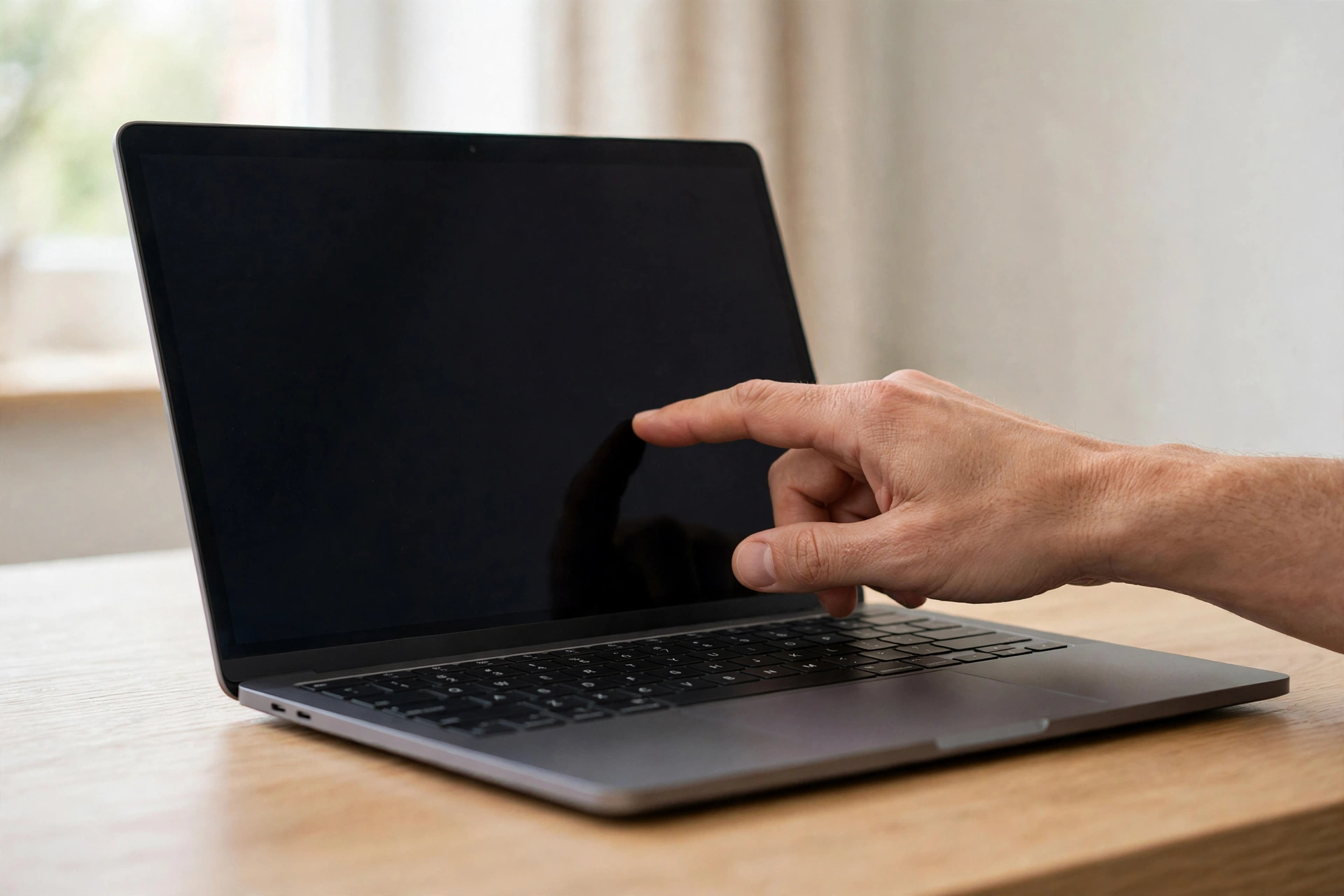
A touch screen laptop looks much like any other laptop. It has a keyboard, a trackpad, and a screen that opens and closes in the usual way. The difference is simple: you can also touch the screen directly. A tap can open an app, a swipe can move through a page, and a pinch can make a photo larger. For many people, that direct way of working feels natural because it matches how they use a phone or tablet.
That does not mean touch replaces the keyboard and trackpad. A touch screen laptop works best when touch is one option among several, used when it is easiest and set aside for typing or precise work. Some people touch the screen many times a day. Others use it only now and then, for a quick scroll or a tap while reading. Both patterns are normal. This guide explains what a touch screen laptop is, how it works, its benefits and downsides, who gains most, and what to check before you buy.
What a Touch Screen Laptop Is
A touch screen laptop is a laptop with a display that responds to touch as well as to the keyboard, trackpad, or mouse. The screen shows the same programs, documents, web pages, and videos as a standard laptop screen. Touch adds another way to control what is on it. You can tap an icon, drag an item with a finger, and scroll a long page with a swipe. In most cases, touch does not change what the laptop can do. It changes how you reach the same result.
Think of it as a laptop first and a touch device second. The keyboard remains the fastest way to write at length, and the trackpad or mouse remains the steadiest way to select small items. Touch shines in short bursts: choosing, scrolling, zooming, signing, or moving through photos. If those moments come up often, touch may feel like a real help. If they are rare, touch may stay in the background, and that is fine too.
How a Touch Screen Laptop Works in Plain Terms
Most modern touch screen laptop displays respond to the small electrical charge in your finger. Beneath the glass, a fine grid of transparent lines carries a faint electrical field. When your finger comes close, it disturbs that field at the point of contact. The laptop senses the change, works out where it happened, and treats it much like a click or drag. A light touch is usually enough, and pressing harder does not normally help.
That is why ordinary gloves and many plastic pens do not work well on this kind of screen. They lack the electrical charge of skin, so the screen may not notice them. A pen made for touch screens, or a glove with conductive fingertips, can work instead. ScienceAlert explains how a touchscreen actually works in simple terms, including why a finger works while an ordinary glove does not.
Older screens sometimes sensed pressure between two thin layers, so almost any pointed object could tap them. Most laptops today use the electrical approach, which suits gestures with more than one finger, such as pinch to zoom. TechRadar describes how touchscreens are changing computing, including the difference between the older and modern approaches. Software matters too: touch feels best when buttons are sized for a fingertip.
The Main Ways to Use Touch on a Laptop
The most common actions are familiar from phones. A tap selects or opens. A swipe moves through a page or photos. A pinch zooms in, and spreading two fingers zooms out. A drag moves an item or highlights text. A long press often opens extra choices, much like a right click, although the exact result depends on the program. Learning a few reliable moves matters more than memorizing a long list of gestures.
Many laptops also support a pen, sometimes called a stylus, for writing and drawing on the screen. A pen can feel closer to writing on paper, and it can make notes, sketches, and markups feel direct. Not every touch screen laptop supports a pen in the same way, so confirm pen support before assuming it is included. If a gesture or pen stroke feels unreliable, the keyboard or trackpad will usually give the same result with less fuss.
The Benefits of a Touch Screen Laptop
The clearest benefit is directness. Tapping what you want can feel faster than finding it with a pointer, especially when showing something to another person. In a meeting or lesson, tapping the screen keeps everyone focused on the same thing. The action and the attention stay in the same place, with no need to explain where the pointer is.
Touch can also make reading and browsing feel relaxed. Scrolling with a finger or flicking through photos can feel closer to reading a book than steering a pointer. For notes and sketches, touch plus a pen can turn the screen into a working surface, so a note, circle, or comment lands right where the content lives. Touch can help people who find a trackpad fiddly, since a large target can be easier to hit with a finger.
The Downsides Worth Knowing Before You Buy
The most visible downside is the state of the screen. A screen you touch collects fingerprints and smudges faster than one you never touch. In bright light, marks can soften the picture and make reading harder. Glossy glass, common on touch screens, can also reflect lamps and windows. Regular cleaning helps, as explained later in this guide, but if a spotless screen matters greatly, the extra cleaning may feel like a chore.
Comfort is another honest downside. The screen stands upright at arm’s length, so repeated reaching can tire the shoulder and arm. Short taps are fine, but long touch-only sessions can feel awkward. The touch layer also adds a little weight to the lid and draws a little power, which can shorten time between charges slightly. Touch models can cost more too, so weigh touch against memory, storage, and keyboard comfort if you would rarely use it.
Who Benefits Most From a Touch Screen Laptop
Students often benefit when work mixes reading, notes, and diagrams. Handwritten notes can sit beside typed notes, a diagram can be sketched quickly, and a page can be highlighted with a finger or pen. The benefit grows when handwriting and markup happen often. If study time is mostly typing essays and searching the web, touch may add little, and keyboard comfort may matter more.
Creative work, presenting, and teaching can also gain from touch. Sketching, editing a photo, tapping through slides, or pointing at a chart can feel more direct on screen than through a trackpad. For office work built around email and documents, touch is often a pleasant extra. If the basics are strong and touch is included, enjoy it without pressure. If the basics are weak, touch alone will not fix the experience.
Touch Screen Laptops for Everyday Tasks
At home, touch earns its keep in small moments: scrolling a recipe while cooking, flicking through photos, or pausing a video with a tap. When the laptop sits within a wider home setup, a smart home guide can help you think about how lighting, heating, security, and Wi-Fi fit together, so new controls stay calm and easy to use rather than competing for attention.
For work and study, touch helps most when it removes a repeated small step, such as signing a document or scrolling a long report. A stable connection matters for video calls too, and an internet booster guide explains how router position and coverage shape the connection in each room. For movies and music, a surround sound system guide explains how speaker placement shapes what you hear, while touch keeps simple playback controls close at hand.
Convertible and Two-in-One Shapes Explained
A standard laptop shape keeps the screen and keyboard in the usual arrangement, with touch as an extra input. It suits people who type most of the time and touch the screen in short bursts. It is straightforward and stable on a desk, since nothing about opening, closing, or carrying the laptop changes.
A convertible shape adds a hinge that folds back, so the screen can stand in tent form for watching or fold fully back for tablet-style use. That flexibility suits reading, sketching, and small spaces. In tablet form it can feel heavy, since you still hold the whole laptop. A detachable shape lets the screen separate from the keyboard, but adds two parts to manage. Try each shape in your hands before deciding, since a clever-looking fold can feel awkward in daily use.
What to Check Before You Buy
Start with your routine, not a feature list. Note the three tasks you do most often, and how often each would truly benefit from touch. If touch would help daily, it belongs near the top of your list. If it would help rarely, let the basics lead: a comfortable keyboard, a clear screen in your usual light, a smooth trackpad, and battery life that covers your day. A laptop that fails on those basics will disappoint with or without touch.
Next, check touch in the programs you use most, since buttons that are easy to tap in one program can be fiddly in another. Look at the screen in your own lighting for glare and fingerprints, and check that the hinge holds steady when tapped. Confirm whether a pen is included, whether it works with the screen, and whether you can switch touch off if accidental taps bother you while typing.
- Check your top three daily tasks first, and let touch earn its place from real use.
- Try touch in the programs you rely on, not only in a web browser.
- Look at glare, fingerprints, and hinge steadiness in your own light.
- Confirm pen support, protection, and repair options before you commit.
Care, Cleaning, and Everyday Protection
Touch screens need a little more care, but the routine can stay simple. Wash and dry your hands before long touch sessions, and avoid greasy or dirty fingers. Food, lotion, and grit leave marks and can scratch the glass if dragged across it. When you are not using touch, use the keyboard and trackpad instead, so the screen stays cleaner for longer.
For cleaning, switch the laptop off and unplug it, support the lid gently, and wipe with a clean, soft microfiber cloth using light, even strokes. A dry cloth removes dust and light smudges. If marks remain, lightly dampen the cloth with distilled water, never by spraying the screen. Let it dry fully before closing the lid. How-To Geek offers a clear guide on how to clean a laptop screen, including what to avoid.
Avoid household glass cleaners, strong sprays, abrasive pads, and paper towels, since they can harm screen coatings. Use only products made for screens, and follow the guidance that came with your laptop first. Keep liquids away from edges, hinges, and ports. Close the lid when not in use, carry the laptop in a sleeve, and keep the keyboard clean, since dust from the keyboard can press against the screen when closed.
Common Mistakes to Avoid
A common mistake is buying touch for the idea of it, without checking whether daily tasks need it. Touch can delight for a few minutes, and that first impression can make it seem more important than it will be after a month. Picture an ordinary day and ask whether touch would truly change it. If not, stronger basics may serve you better.
Another mistake is assuming touch replaces the keyboard or trackpad. Forcing every task through touch can tire your arm and slow editing. Mix inputs freely: type to write, point for precision, and touch for a quick tap or drag. Do not neglect cleaning either. Keep a microfiber cloth nearby, clean often with light pressure, and protect the laptop in a bag. Choose the whole laptop, not one feature.
Frequently Asked Questions
Do I need a touch screen laptop if I mostly type and browse the web?
Not necessarily. Typing and browsing work very well with a keyboard and trackpad. Choose touch if you will use it often for notes, sketches, presentations, or shared viewing. Otherwise, prioritize keyboard comfort, screen clarity, and battery life.
Does a touch screen laptop work with gloves or an ordinary pen?
In most cases, no. Most modern screens sense the charge in your finger, so ordinary gloves and pens do not register. A pen made for touch screens, or a glove with conductive fingertips, can work, but confirm compatibility first.
Will a touch screen laptop have shorter battery life?
It can use a little more power, since the touch system stays ready to sense contact. The difference is often small. Brightness, background programs, and wireless connections usually affect battery life far more than touch alone.
Can I turn the touch screen off if I do not want it?
In many cases, yes, through your operating system settings, although the steps vary. Check how to switch it off and back on before you rely on the setting, especially if accidental taps bother you while typing.
Is a touch screen laptop good for children or older users?
It can be, because tapping a large, clear target is easy to understand. Clear rules still matter: supervise accounts, protect the screen, and keep private files safe. Guidance and settings matter just as much as touch itself.
Conclusion
A touch screen laptop is a familiar laptop with one more way to work. Touch adds directness to tapping, scrolling, zooming, and sharing, and it can make reading and presenting feel natural. It also brings smudges, a little extra weight and power use, and a need for gentle care. Your routine decides whether the trade-offs are worth it.
If touch would help every day, and the keyboard, screen, hinge, and battery life are strong, it can be a satisfying choice. If touch would appear only now and then, let the basics lead and treat touch as a welcome extra. Try the screen in your own light, test it with your own programs, and choose the whole laptop with a clear mind.